AI Color Grading That Learns You: Your Personal Style, Automated
What if your color grading software remembered your taste, studied your past grades, and applied your personal style to every new shot with one click? That is exactly what PFA Color Suite 13.3 delivers with CinePalette AI, a custom AI color grading system that trains on your own grading history and becomes your personal color grading assistant inside DaVinci Resolve.
This is not another generic AI preset or a one-size-fits-all LUT. CinePalette AI analyzes your source images, learns from every grade you have created, and generates looks that sound like you, not a machine. You keep full control over all 135 parameters while the AI handles the heavy lifting.
What Is CinePalette AI and How Does It Work?
CinePalette AI is a custom color grading engine built into PFA Color Suite that transforms the plugin from a collection of 135 color grade tools into a full AI color grading pipeline and personal assistant. The system works in three steps: analyze, train, and generate.
First, you drop a reference image into CinePalette AI and click Analyze Palette. The algorithm reads the color palette, contrast profile, tonal curve, and color density of your reference. It maps all 135 parameters inside PFA Color Suite to recreate that look on any footage.
Second, you can register your own manual grades as AI training data. Every time you create a grade you are proud of, you save it as a training profile. The AI learns your patterns, your preferences, your signature style.
Third, when you are on a new project, you click Generate Look and the AI applies everything it has learned from your training history to deliver a usable, cinematic grade in one click. If you want something different, hit Regenerate to get a new variation based on the same training data.
Why Custom AI Color Grading Beats Generic Presets
Most color grade tools on the market apply a fixed look to your footage. They do not know your style, your project, or your creative intent. CinePalette AI works differently because it trains on your own grading history.
Here is what that means in practice:
- Personal style replication: The AI learns how you handle contrast, saturation, and color balance. Every generated look reflects your creative decisions, not some generic template.
- Full parameter control: Unlike LUTs that lock you into a baked-in transformation, CinePalette AI activates all 135 parameters simultaneously. You can adjust every single slider after the AI generates the look.
- Reference photo analysis: Drop any reference photo into the plugin and the AI extracts the exact color grading approach. Match the mood of a film still, a photograph, or your own previous grade.
- Match Confidence slider: Control how closely the AI follows the reference. Slide from subtle influence to exact match, depending on what the scene needs.
Step-by-Step: AI Color Grading Workflow in DaVinci Resolve
Here is how to use CinePalette AI for custom color grading in your DaVinci Resolve workflow, from raw LOG footage to a finished cinematic grade.
Step 1: Analyze Your Reference Image
Start with the shot that has the look you want to match. Apply PFA Color Suite to a new node, open CinePalette AI, and click Analyze Palette. The AI reads the color profile and prepares it for transfer.
Step 2: Apply to Your Target Shot
Move to your ungraded shot. Use the Correction LOG feature first to handle LOG to Rec.709 conversion, color correction for exposure, and white balance. PFA Color Suite detects the LOG format automatically, whether it is S-Log3, C-Log, V-Log, or any other profile. Grade with AI analyzes the footage and sets the best correction baseline.
Step 3: Paste the Palette
Click Paste Palette to transfer the analyzed color grading look to your target shot. The result is immediate. You will see the color density, tonal curve, contrast, and saturation all shift to match your reference. This is the power of AI color grading done right.
Step 4: Fine-Tune With Full Control
Now you have the creative control. Adjust AI Influence to determine how strongly the grade applies. Use the Match Confidence slider to dial in the intensity. Then use any of the 135 tools to refine the look:
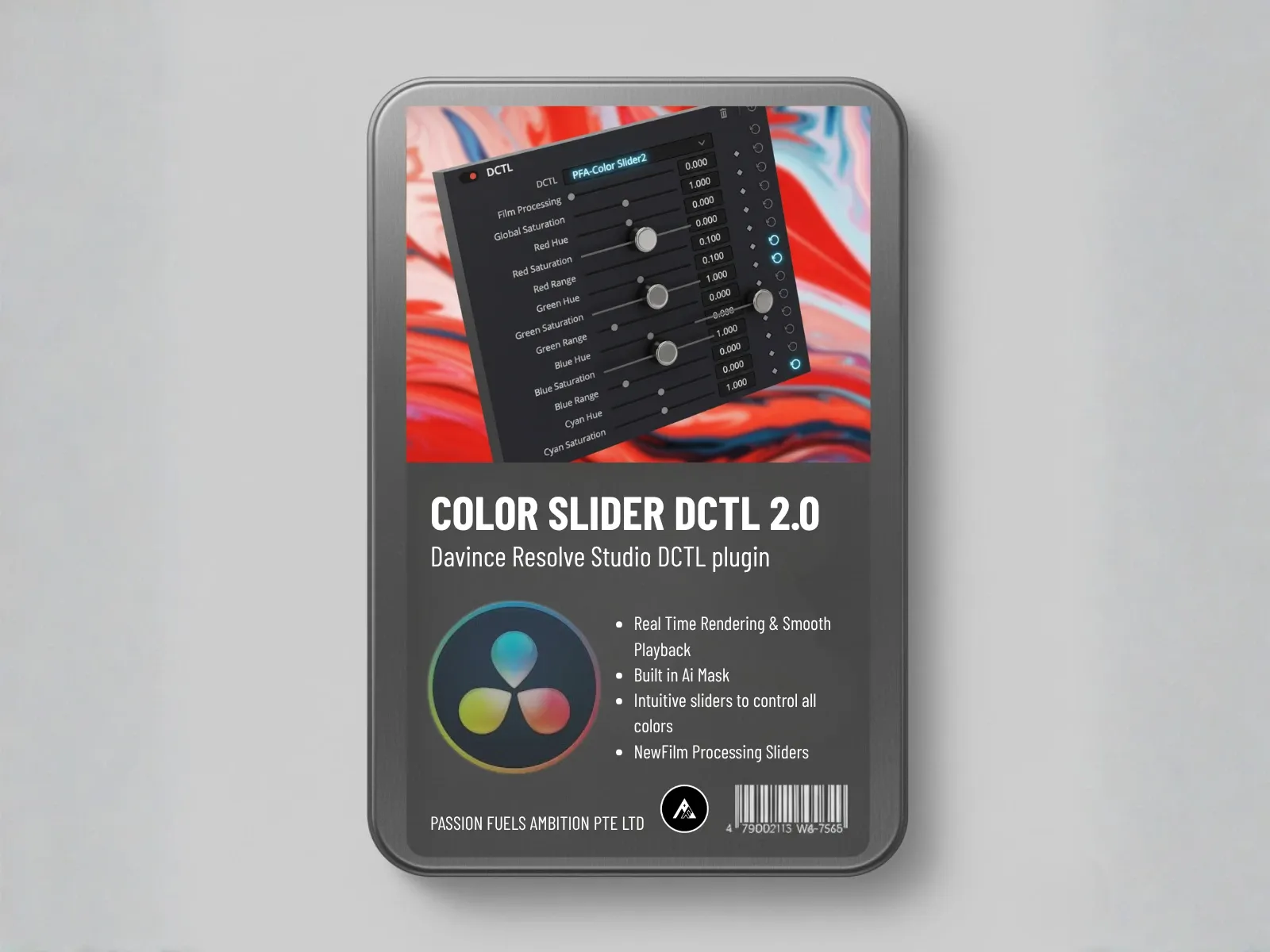
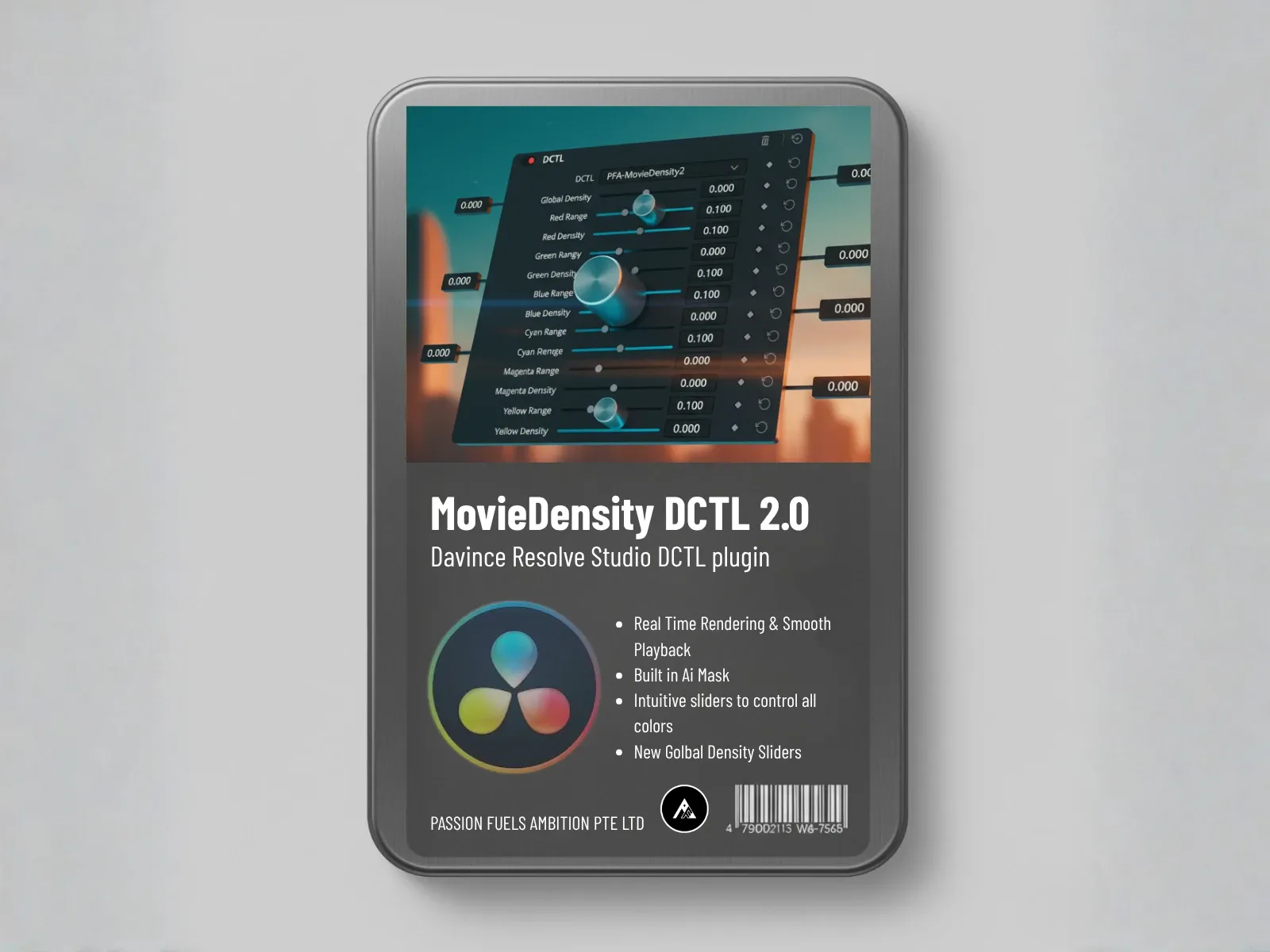
- Color Density: Increase saturation while reducing brightness for organic, rich colors. Adjust individual color channels like blue density or cyan density.
- Film Mixer: Build your palette with teal and orange, teal and pink, or any custom color combination. Remix color channels to create the exact mood you want.
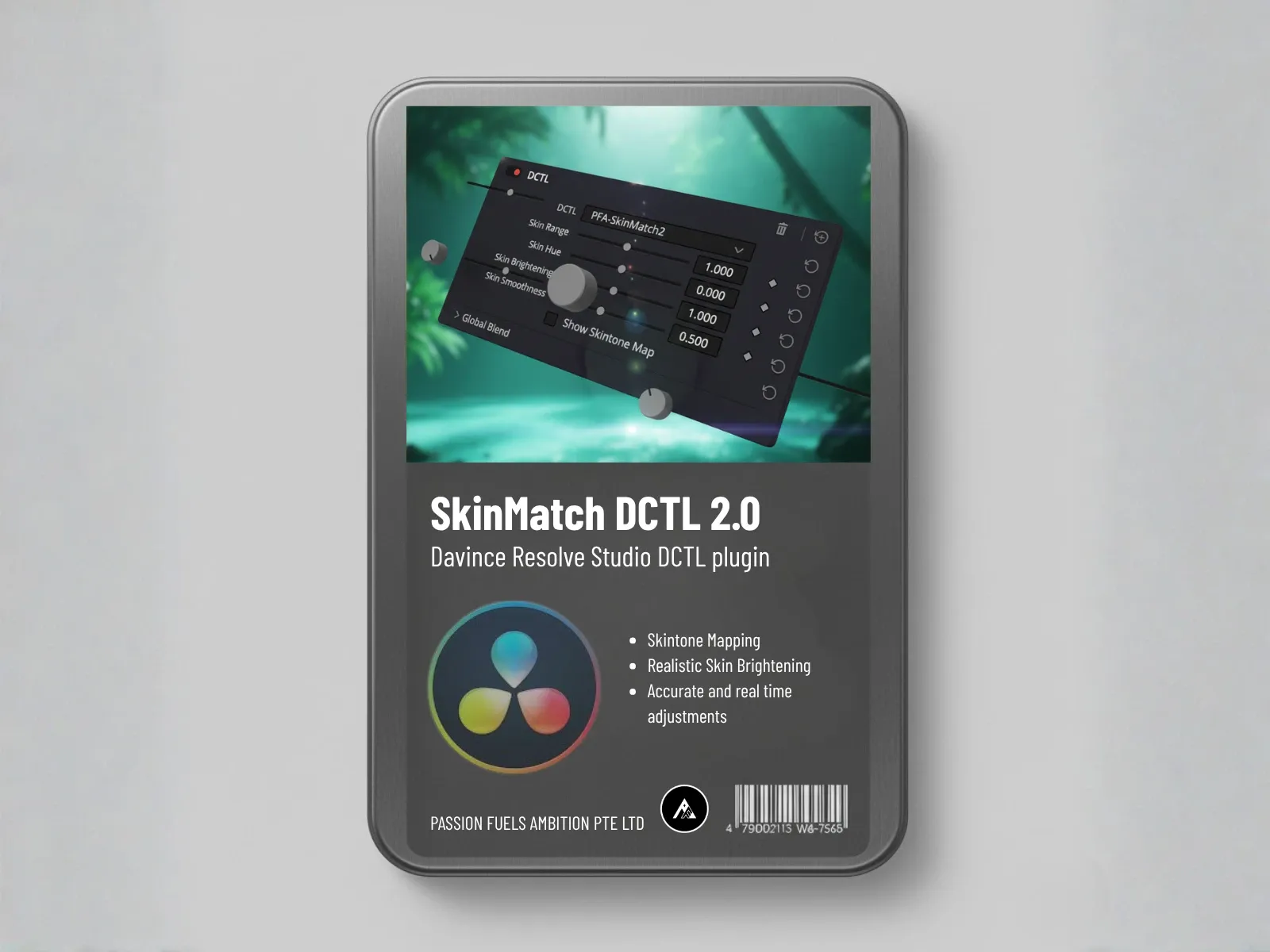
- Color Skin: Isolate skin tones, adjust how fair or deep the skin color should be, and align with the skin tone line on the vectorscope.
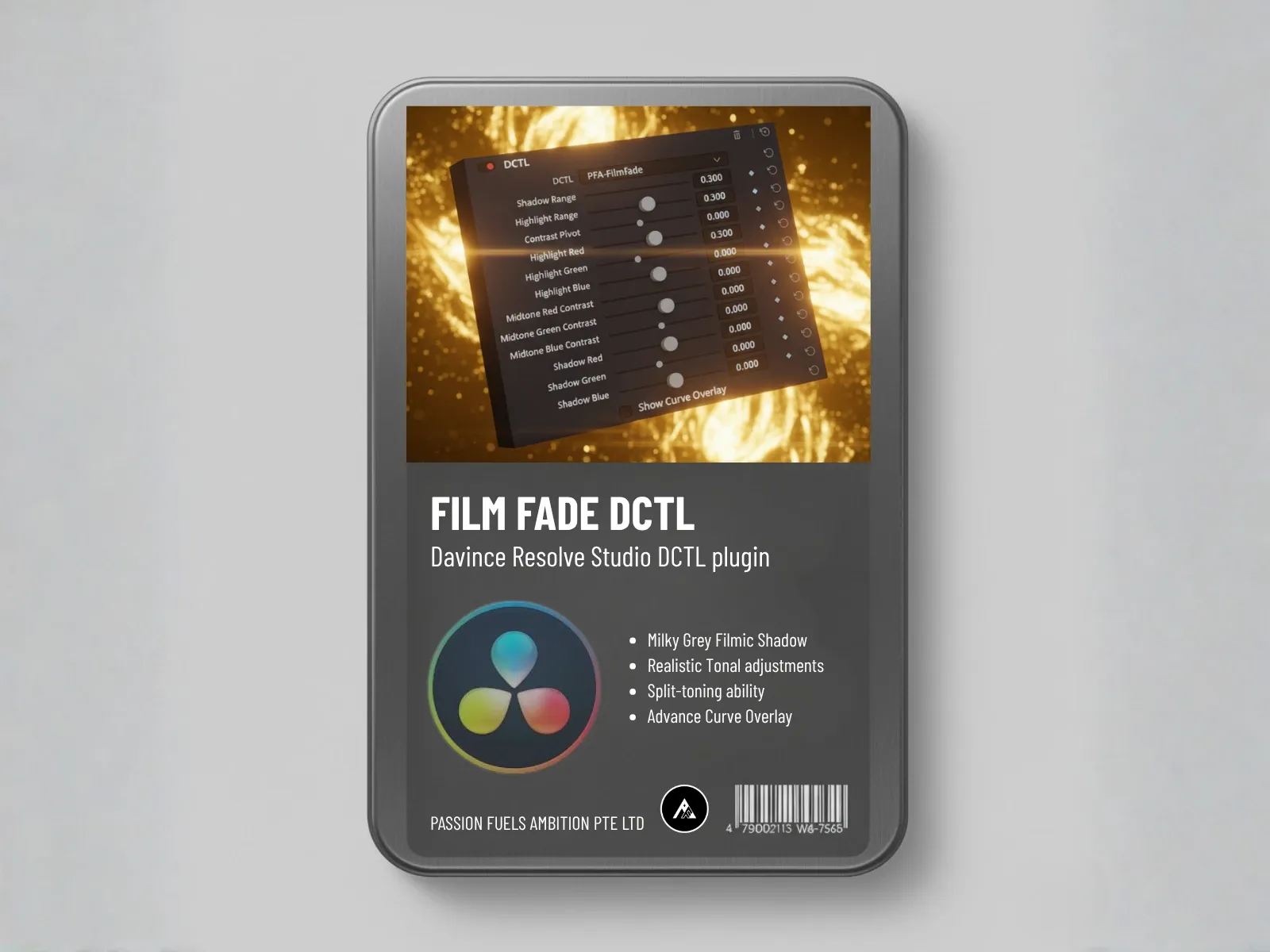
- Film Tonal Curve: Add milky gray to shadows, adjust the black point, shape the contrast curve to your taste.
- Film Printer Lights: Inject green and yellow tones for warm afternoon sun vibes, or cool down with blue adjustments.
AI Training: Teach the AI Your Personal Grading Style
Here is where CinePalette AI becomes something no other color grade tool offers. You can train the AI on your own grading history.
After you create a manual grade using all 135 parameters, you register it as an AI training profile. The AI studies every parameter change you made, the relationships between your adjustments, and the creative intent behind your choices.
Once you have registered training, go to any new shot and click Generate Look. The AI uses your personal grading history as a learning system. It activates all the parameters it learned from your training to create a look that is uniquely yours.
Do not love a particular result? Hit Regenerate to get a new variation. The AI cycles through your training data and presents different interpretations of your style. Each one is fully adjustable.
Real-World Results: From Neutral to Cinematic in One Click
During testing, CinePalette AI transformed completely neutral shots into cinematic grades in seconds. A shot with no color information, flat exposure, and manufacturer default saturation was converted to a rich, contrasty grade with teal and orange separation, organic color density, and proper skin tone alignment.
The AI handled LOG to Rec.709 conversion, white balance, and exposure correction automatically. Then it applied the reference color palette with full parameter activation across all 135 controls. The before and after comparison showed a transformation that would normally take 10 to 15 nodes and 20 minutes of manual adjustment.
This works seamlessly across different camera sources, including DJI footage with non-standard LOG profiles. The Correction LOG feature detects any LOG format in the world and applies the right conversion baseline before the automated grading takes over.
How CinePalette AI Compares to Other AI Color Grading Tools
The color grading landscape includes AI tools like Colourlab AI (Adobe), Imagen, and built-in DaVinci Resolve features. Here is how CinePalette AI stands apart:
| Feature | CinePalette AI | Colourlab AI | Resolve Built-in |
|---|---|---|---|
| Personal style training | Yes | No | No |
| 135 adjustable parameters | Yes | Limited | Yes (manual only) |
| Reference image analysis | Yes | Yes | No |
| Works in free Resolve | Yes | Yes | Yes |
| LOG to Rec.709 auto-detect | Yes | Yes | No |
| Color density control | Per-channel | Global only | Manual |
| AI training on your grades | Yes | No | No |
The key differentiator is AI training. CinePalette AI is the only tool that learns from your personal grading history and applies your style to new footage. Other tools apply generic looks or match photos without understanding your creative preferences.
Who Should Use Custom AI Color Grading?
CinePalette AI is designed for colorists, video editors, and content creators who want to speed up their workflow without sacrificing creative control. It works especially well for:
- Wedding videographers who grade hundreds of shots and need consistent looks across an entire day of footage.
- Commercial editors who need to match photos from directors or art departments quickly.
- Independent filmmakers who want to develop a signature color grading style and apply it consistently across projects.
- Content creators who produce regular videos and want their brand look automated without relying on static LUTs.
- Colorists who want to train an AI assistant on their best work and use it as a starting point for every new project.
PFA Color Suite 13.3 Release Details
PFA Color Suite 13.3 launches on June 30, 2026, with CinePalette AI as the headline feature. The update also includes improvements to the Correction LOG engine, expanded LOG format detection, and enhanced AI training capabilities.
Existing users can upgrade at the current pricing before the increase takes effect. New users can start with a free trial that gives full access to all 135 parameters and the AI grading engine.
Use the promo code thankyou2026 for 45% off any license before committing. This is the best time to lock in pricing before the 13.3 release drives rates up.
Frequently Asked Questions
What is custom AI color grading?
Custom AI color grading is an AI-powered approach that learns from your personal grading history and applies your unique style to new footage. Unlike generic presets, the AI trains on your own parameter adjustments and creative decisions, so every generated look reflects your signature aesthetic rather than a one-size-fits-all template.
How does CinePalette AI differ from Colourlab AI?
Both tools offer AI-powered color matching and reference image analysis. CinePalette AI goes further by allowing you to train the AI on your own grading history, offering 135 adjustable parameters per grade, and providing per-channel color density control. It also includes automatic LOG to Rec.709 conversion for any camera format.
Does CinePalette AI work with the free version of DaVinci Resolve?
Yes. PFA Color Suite is an OpenFX plugin that works with both the free and Studio versions of DaVinci Resolve 18, 19, and 20 on Mac and Windows.
Can I adjust the AI-generated grade after it is applied?
Absolutely. Every parameter that the AI activates is fully adjustable. You can change contrast, color density, skin tones, film mixer settings, tonal curves, and any of the 135 tools in PFA Color Suite. The AI gives you a starting point, not a locked result.
What is the AI Training feature?
AI Training lets you register your manual grades as learning data. After creating a grade you are proud of, you save it as a training profile. The CinePalette AI engine studies all 135 parameter settings and their relationships. When you click Generate Look on new footage, the AI applies what it learned from your training history to create a grade in your personal style.
Does it work with LOG footage from any camera?
Yes. The Correction LOG feature in PFA Color Suite detects LOG formats from any camera manufacturer, including S-Log3, C-Log, V-Log, BRAW Log, ProRes RAW, and DJI D-Log. It applies the correct conversion baseline before the AI color grading takes over.