AI Color Grading Plugin That Analyzes and Grades Each Frame Automatically
If you have spent any time on colorist forums, you know the complaint. Color grading takes longer than actually editing the video. Editors spend hours tweaking exposure, fighting skin tones, and still end up with something that looks nothing like the reference. The biggest nightmare is inconsistency. You grade one shot perfectly, move to the next, and suddenly nothing matches.
That is exactly why PFA Color Suite 13.3 introduces CinePalette AI — an AI color grading plugin that analyzes each frame individually and applies cinematic grades using 135 adaptive parameters. This is not a static LUT or a one-size-fits-all preset. The AI reads your footage, understands the lighting and color context, and generates a grade that belongs to that specific shot.
What Is CinePalette AI?
CinePalette AI is the newest feature inside PFA Color Suite, and it represents the final milestone in a full AI color grading pipeline for DaVinci Resolve. Unlike traditional grading tools that apply the same adjustments regardless of content, CinePalette AI analyzes your reference frame and dynamically adjusts 135 parameters to create a grade that matches the specific lighting, color space, and exposure of your footage.
Every tool inside PFA Color Suite — all four engines, all 12 dedicated tools — runs under the ACES workflow map. That means it computes based on mathematical color science, not a static LUT. Whether you are working with log footage, RAW files, or any camera format, CinePalette AI adapts flawlessly.
CinePalette AI is part of the broader PFA Color Suite OpenFX plugin that includes the Color Engine, Contrast Engine, Mixer Engine, and Texture Engine.
How CinePalette AI Analyzes Your Footage
Here is how the workflow breaks down in practice. You open CinePalette AI inside PFA Color Suite and click Generate Look. The AI shifts through the entire database of professional color grading parameters and creates a completely unique grade. Hit it again and you get a totally different look. You will never get the same grade twice.
But the real power comes from the parameter-level control. Let us say you like the warm tones the AI created in a particular look. You scroll down to individual parameters and adjust the color mixing, fine-tune the tonality, and dial in exactly what you want. Full creative controls, not a black box.
The 135 Parameters That Make It Work
CinePalette AI does not just slap a filter on your footage. It works with 135 individual parameters organized across multiple grading dimensions. Each parameter is fully customizable in 32-bit float precision, which means zero locked looks and infinite creative control.
The AI engine reads the shot and creates a grade that adapts to the footage characteristics. A landscape shot gets different tonal treatment than an outdoor portrait. A dimly lit indoor scene gets different contrast handling than a bright exterior. The parameters shift per frame, so even when you paste a grade to the next shot, the AI recalculates to match that shot’s lighting perfectly.
Step-by-Step: AI Color Grading Workflow in DaVinci Resolve
Here is the complete workflow for using CinePalette AI to grade your footage from start to finish.
Step 1: Set Up Your Color Pipeline
The cleanest pipeline starts with correcting your log footage. Convert your log source to DaVinci Wide Gamut for the widest possible color working space. This gives CinePalette AI the most color data to work with during analysis. If you are working with mixed camera formats, the free universal Log to Rec.709 LUT pack handles the initial conversion before you grade.
Step 2: Generate Your First AI Grade
Open CinePalette AI and click Generate Look. The AI analyzes your reference frame and applies a cinematic color grade using all 135 parameters. The result is a cinematic grade tailored to that specific shot’s lighting, contrast range, and color characteristics. Click Generate again for a completely different interpretation. Each generation produces a unique look because the AI is working with real color science, not a static lookup table.
Step 3: Fine-Tune with Film Tonal Curve
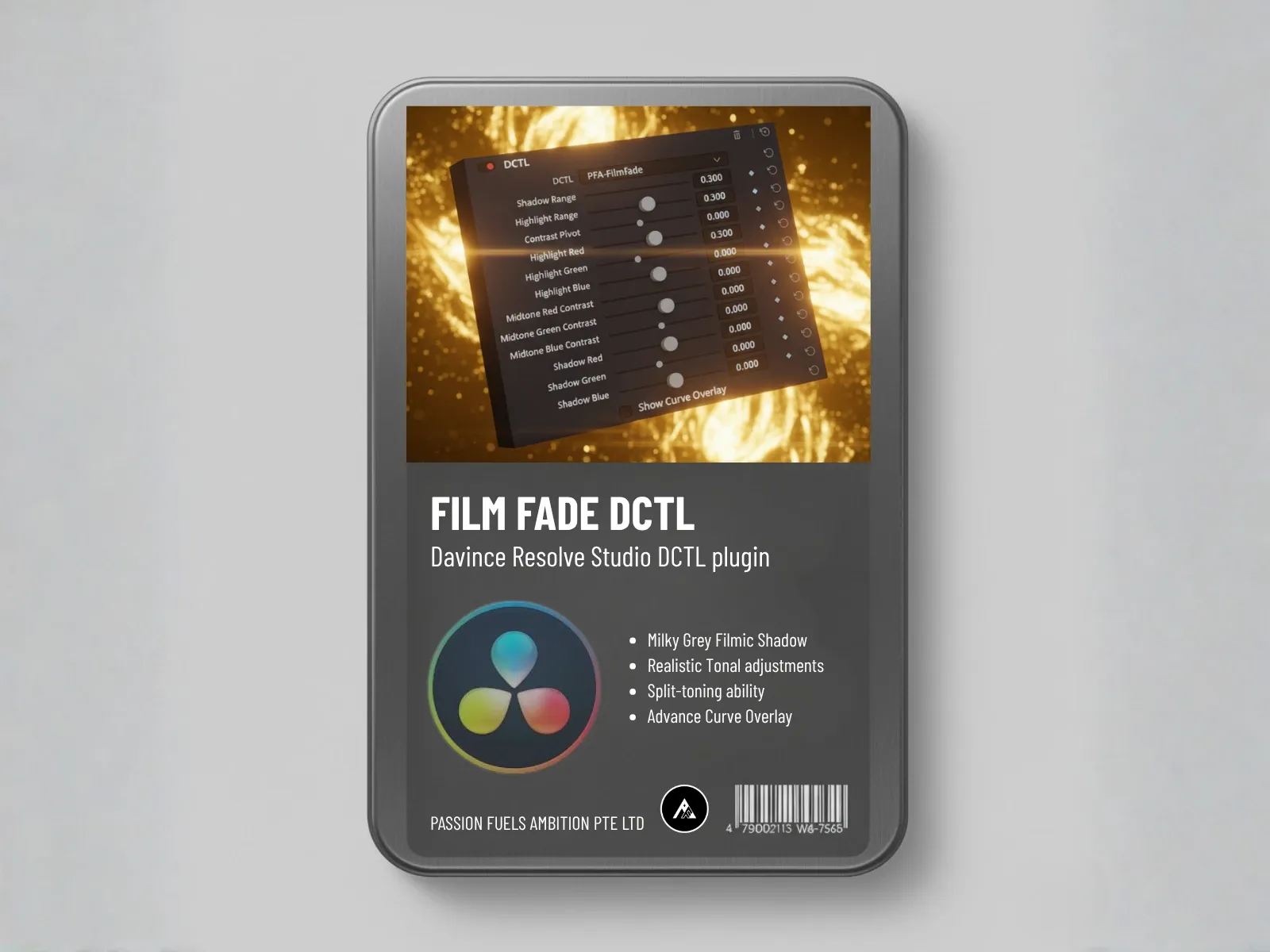
Once the AI generates a look you like, refine it using the Film Tonal Curve engine. This gives you precise control over the tonal response — shadows, midtones, and highlights — with film-like behavior that maintains image integrity. No clipping, no crushing, just smooth tonal transitions.
Step 4: Adjust Color Mixing with Film Split Tone
The Film Split Tone tool lets you separate and adjust the color balance between highlights and shadows independently. This is where you get that cinematic color separation that makes your footage look like it came from a film camera rather than a digital sensor.
Step 5: Color Injection with Film Mixer
Use Film Mixer to dial in specific color relationships. The classic teal and orange look, for example, is achieved by pushing warm tones in the highlights while keeping shadows cool. Film Mixer gives you precise control over how each color channel interacts with the others.
Step 6: Final Polish with Film Printer Lights
Finish with Film Printer Lights for that final color injection. Printer lights simulate the traditional film lab process where color timing was done with physical light filters. The result is a natural, organic color quality that digital grading alone cannot replicate.
Why AI Color Grading Beats Manual Shot Matching
The traditional approach to color grading requires you to grade one shot, then manually match every subsequent shot to that reference. This is where most editors lose hours of their time. CinePalette AI solves this by analyzing each frame individually and generating a grade that belongs to that footage.
When you paste a grade from one shot to another, the AI recalculates all 135 parameters based on the new shot’s characteristics. The result is consistent creative intent across your entire timeline without the tedious manual matching process.
This is particularly powerful for projects with mixed footage — different cameras, different lighting conditions, different color spaces. The AI color grading plugin handles the technical adaptation so you can focus on the creative decisions.
ACES Workflow and 32-Bit Float Precision
One thing most color grading tools will not tell you is how they handle color data under the hood. Every tool in PFA Color Suite runs under the ACES flow map, which means you are working with full precision color data. When you apply a grade, you are not clipping colors or crushing data. You are working with the full mathematical color space.
This matters because it means your grades remain flexible throughout post. You can push and pull parameters without degrading the image quality. The 32-bit float precision ensures smooth gradients, no banding, and accurate color reproduction even when making extreme adjustments.
Complete Color Grading Tools in PFA Color Suite
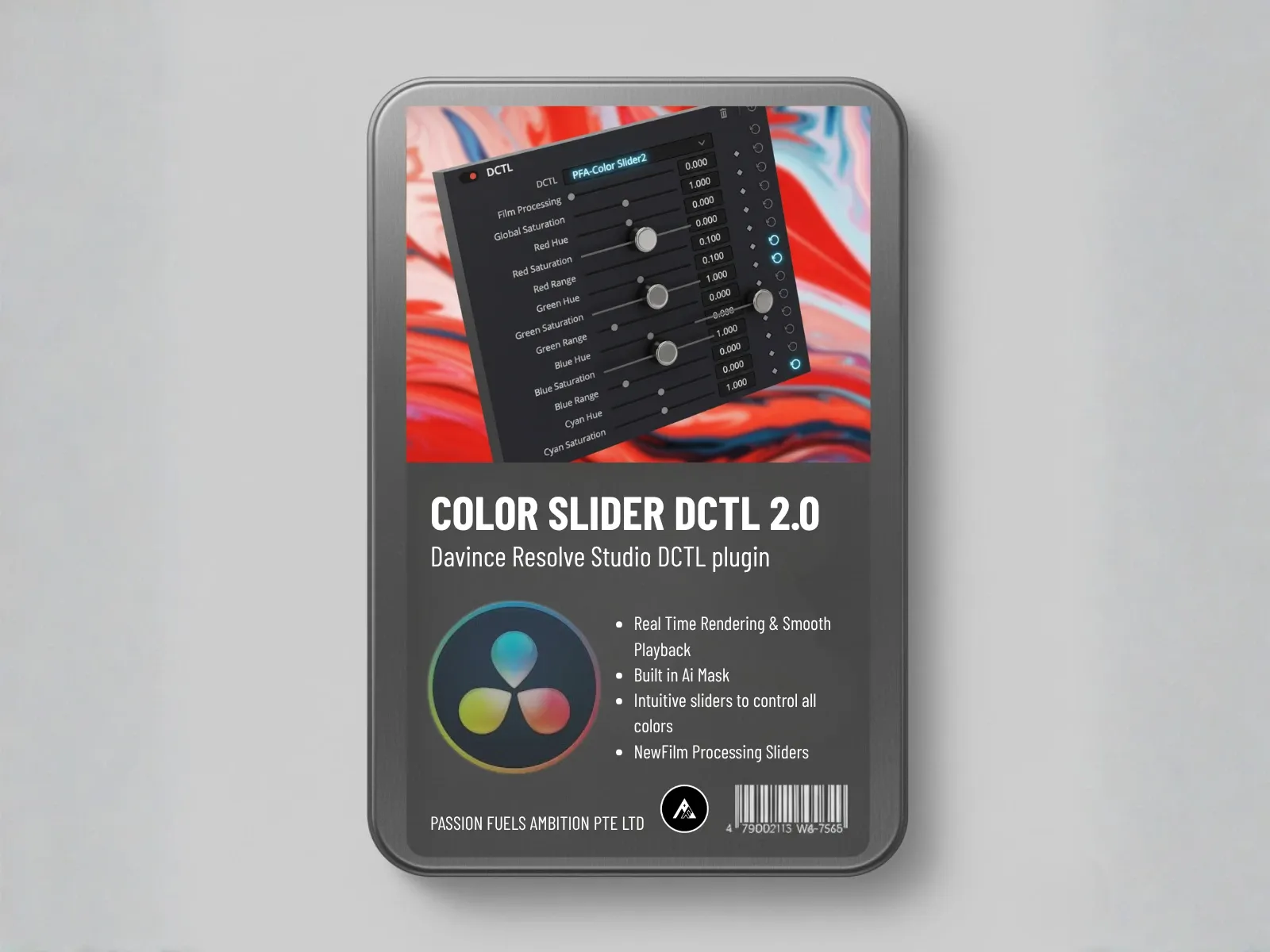
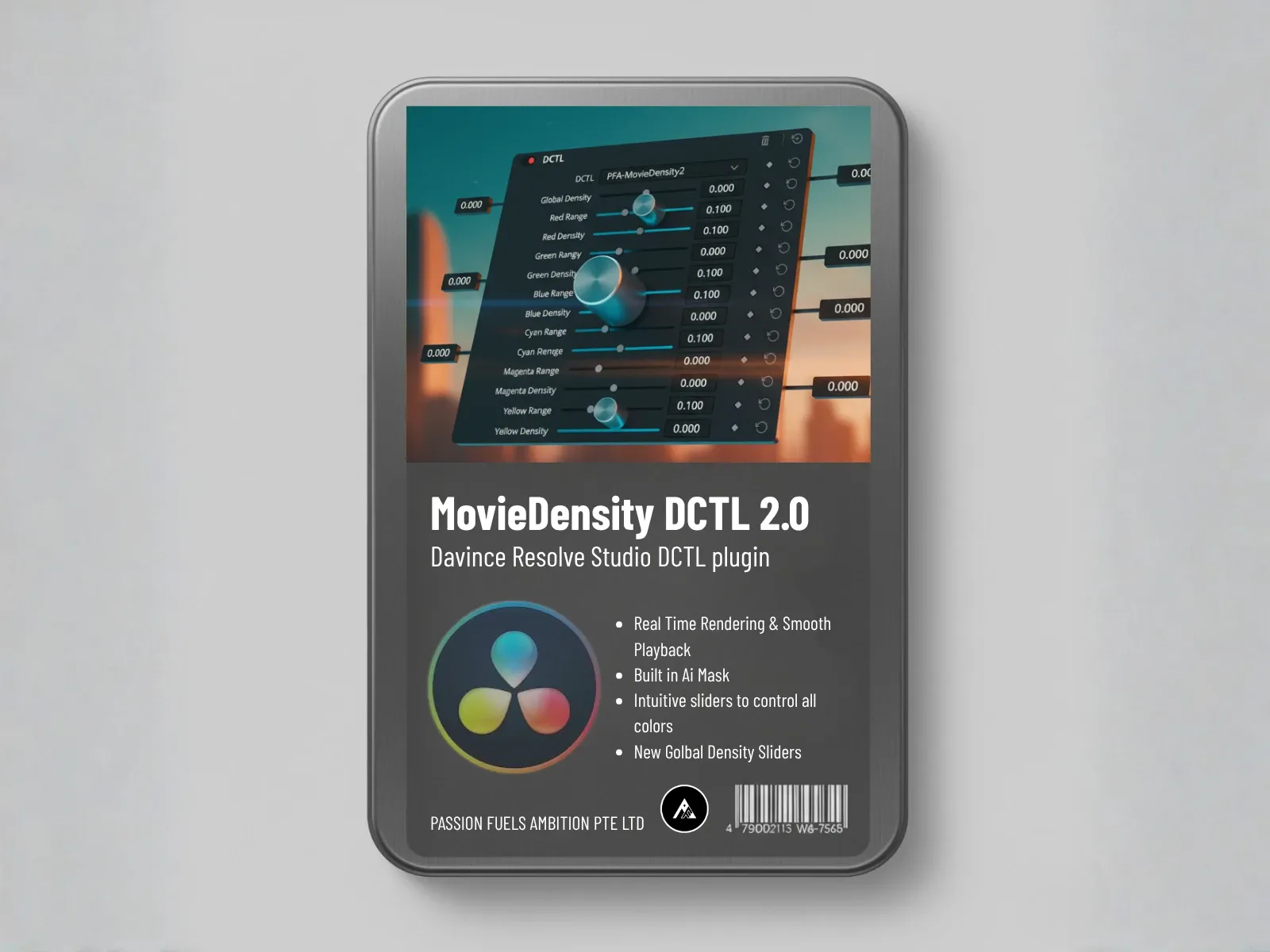
CinePalette AI is just one part of the PFA Color Suite ecosystem. The full plugin includes four engines and 12 dedicated tools that cover every aspect of the color grade process. The Color Engine handles Color Slider adjustments for precise saturation control, while the Contrast Engine manages film density and subtractive color techniques that give your footage that organic film quality. Every slider in the interface maps directly to a mathematical parameter, giving you real-time control over how the AI-generated grade evolves.
Whether you need to push color density for cinematic depth, adjust split tones for mood, or fine-tune printer lights for final color injection, the full suite works together as a cohesive grading system. CinePalette AI generates the creative direction, and the remaining 11 tools let you refine it to perfection.
Save and Recall Your AI Grades
Once you find a look you love, save it as a preset. CinePalette AI’s preset system lets you name and store any configuration of the 135 parameters. When you move to the next shot in your timeline, load that preset and the AI applies it seamlessly, adapting the parameters to match the new footage’s characteristics.
This is fundamentally different from LUTs, which apply the same mathematical transformation regardless of content. A preset loaded through CinePalette AI adjusts to each frame, giving you consistency of creative intent without uniformity of application.
PFA Color Suite 13.3 Availability
CinePalette AI will be available in PFA Color Suite 13.3, scheduled for release at the end of June 2026. You can download the free trial right now to test the full suite on your own footage. Every tool, every engine, completely unlocked during the trial period.
For early access before the 13.3 price increase, use the promo code Thank You 2026 for a significant discount on the lifetime license.
FAQs About AI Color Grading with CinePalette AI
How does CinePalette AI differ from a LUT?
A LUT applies a fixed mathematical transformation to every frame, regardless of content. CinePalette AI analyzes each frame individually and adjusts 135 parameters based on the specific lighting, color space, and exposure of that footage. The result is a grade that adapts to your content rather than forcing your content into a preset.
Does CinePalette AI work with any camera format?
Yes. Because CinePalette AI runs under the ACES workflow map, it works with any camera format — log, RAW, Rec.709, or any other color space. The AI adapts its analysis to the input color data and generates appropriate parameters for that footage.
Can I customize the AI-generated grades?
Absolutely. Every one of the 135 parameters is fully customizable in 32-bit float precision. The AI generates a starting point, but you have complete creative control to adjust color mixing, tonality, contrast, and every other parameter. It is not a black box — it is a creative tool.
How is CinePalette AI different from Colourlab AI?
Colourlab AI is primarily a shot-matching and LUT generation tool that works as a standalone application. CinePalette AI is a native DaVinci Resolve OpenFX plugin that grades directly on your timeline in real time. You get immediate visual feedback, full parameter control, and the ability to iterate and refine without leaving your grading environment.
Is CinePalette AI included in the PFA Color Suite free trial?
Yes. The PFA Color Suite free trial includes every tool and engine, fully unlocked. You can test CinePalette AI on your own footage with no limitations before deciding to purchase.
Passion Fuels Ambition. I will see you in the next grade.