Custom AI Color Grading Training: Build Your Personal AI Assistant in DaVinci Resolve
Most AI color grading tools apply a generic look you cannot control. They burn the result into your footage, and you lose the ability to fine-tune. That changes with PFA Color Suite 13.3. You can now train CinePalette AI with your own grading style, export your color grading brain, and apply it consistently across every shot. Here is exactly how custom AI color grading training works, why it matters, and how to set it up in under two minutes.
What Is Custom AI Color Grading Training? A Complete Guide to Colour Grade Your Footage
Custom AI color grading training lets you teach an AI engine how to colour grade in your personal style by feeding it examples of your best work. Instead of applying a one-size-fits-all look, the AI learns your specific approach to contrast, saturation, color balance, and tonal mapping. Once trained, it can generate looks on new footage that match your signature style.
PFA Color Suite 13.3 introduced this capability to CinePalette AI. You colour grade a reference shot using the full 135-parameter toolkit, save those settings, and the AI learns exactly how you colour grade., save that grade as training data, and the AI uses it to generate matching looks on any subsequent footage. You can also export your training data to another machine or import someone else’s.
Why Every Color Grading Tool Falls Short Without Custom AI Training
Existing AI color grading solutions have a fundamental problem: they record everything automatically. When you are exploring a tool, tweaking settings, and testing different looks, every adjustment gets captured. Bad grades get registered alongside good ones. The result is an AI model trained on noise instead of your best work.
Professional colorists need control. Every time you colour grade a project, you want to decide exactly which grades become part of your AI training data. PFA Color Suite 13.3 gives you that control with manual training, export, and import capabilities.
How to Color Grade with AI in DaVinci Resolve: Custom Training Workflow
The workflow is straightforward. Start with a log or flat shot that needs full correction. Use the Correction tools to nail your foundation first: LOG correction, exposure, and white balance. Let the AI handle the technical corrections so you can focus on the creative grade.
Step 1: Correct Your Foundation with AI
Click Grade with AI on the Correction LOG panel. The engine analyzes your footage and sets exposure, white balance, and tonal range automatically. Every shot gets individualized color correction because the AI reads each clip’s unique metadata and histogram data. This is far faster than manually adjusting lift, gamma, and gain on every clip.
How White Balance and Color Correction Set Your Foundation
Before you build any creative look, nail your white balance and color correction. The AI analyzes each shot and sets the white balance automatically. Every slider adjusts based on the unique characteristics of your footage. This is the foundation that every professional color grading tool relies on. Without proper white balance, your creative grade will look wrong on different displays.
When you colour grade a project with mixed white balance sources, the AI handles the heavy lifting. You can still adjust every slider manually, but the starting point is already balanced. This is one of the biggest advantages of AI-assisted color correction over traditional workflows.
Step 2: Build Your Creative Grade
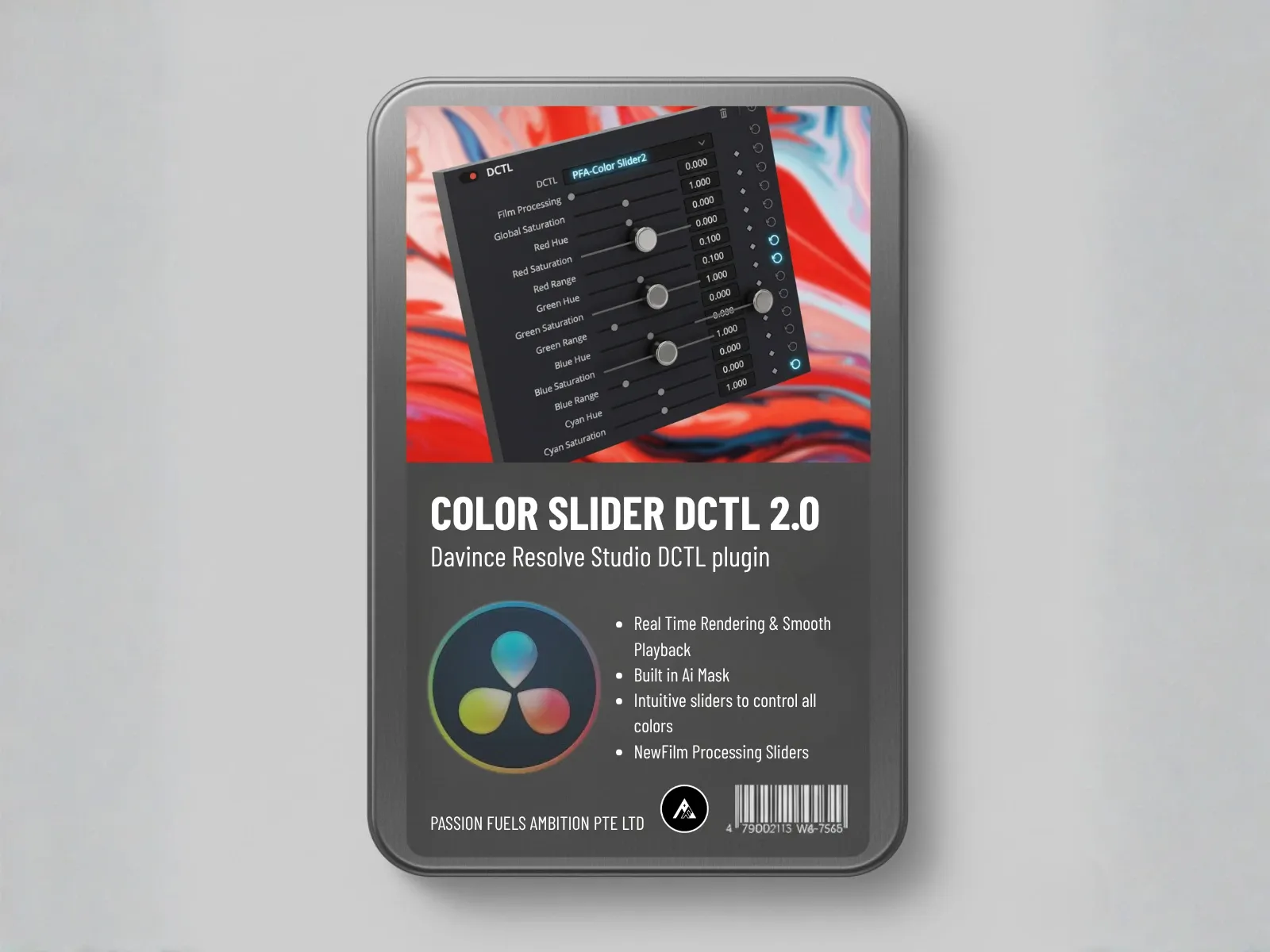
Once correction is locked, build your creative look. This is where the color grading fundamentals come into play. PFA Color Suite gives you five distinct saturation engines, each with a different approach to color:
- Film Spectral Contrast handles channel-level RGB contrast without affecting exposure. Increase red contrast to bring vitality back into desaturated footage. This is contrast-based saturation that works at the channel level.
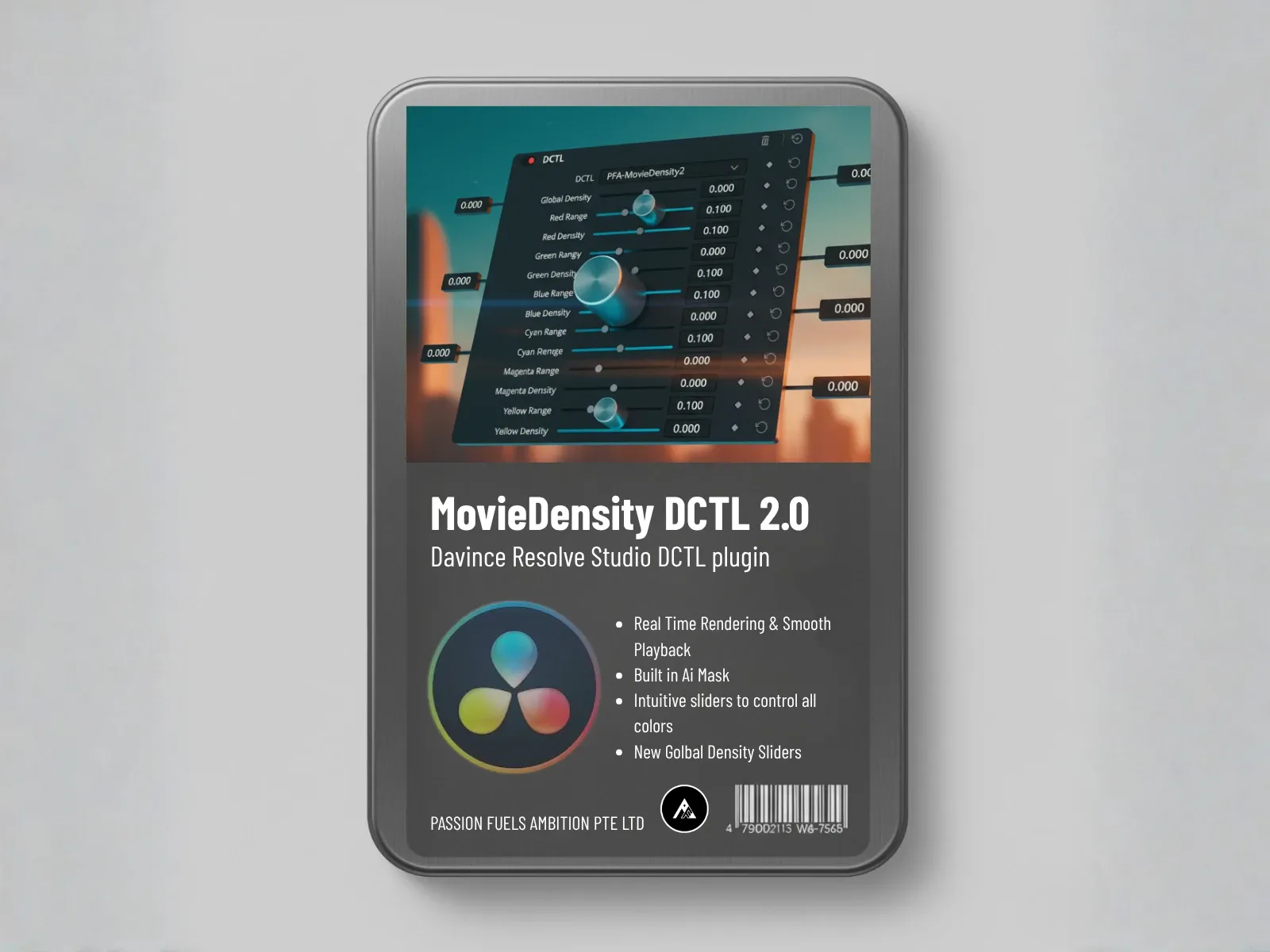
- Color Density uses a subtractive color engine based on the Beer-Lambert law of real dye. As you increase global density, colors get richer and deeper without the cheap, blown-out look of additive saturation. This produces that expensive, cinematic look that additive tools cannot replicate.
- ColorSwap is the additive engine. It brightens pixels as it adds saturation, which can look artificial. Its strength is hue rotation, not saturation. Use it when you need to shift colors, not deepen them.
- Film Separation saturates along vectorscope axes, like the red-cyan and magenta-green vectors. This gives you precise control over color direction and intensity without clipping.
- Film Printer Lights injects color into selected areas only. Use a power window to constrain the effect, then inject colors that were not captured on set.
Whether you color grade in DaVinci Resolve or use Premiere Pro, and no matter how you color grade your footage, understanding subtractive versus additive saturation helps you color grade more efficiently and create cinematic looks that feel natural and expensive. When you color grade with AI assistance, your approach changes fundamentally. understanding subtractive versus additive saturation helps you create cinematic looks that feel natural and expensive.
Step 3: Save as AI Training Data
Once you are happy with your grade, click the AI training button to save your current settings as training data. The AI now knows your style. Clear your grade, move to the next shot, and click Generate Look. The AI will produce a grade that matches your saved training profile.
The Film Look Intensity slider controls how strongly the AI applies your trained style. Lower values give you a subtle interpretation. Higher values push the look closer to your reference grade. This gives you variation without retraining.
Export and Import Your AI Training Data: Colour Grade Anywhere
Your training data is portable. Export it to your desktop as a file, then import it on any other machine running PFA Color Suite. This means your color grading brain travels with you. Work in the studio, move to a client site, or switch workstations without losing your trained AI assistant.
This is particularly valuable for colorists working across multiple systems or teams who want to share a consistent grading style. Export your best training data, share it with your team, and everyone generates looks that match your established look. Every color grading tool on the market claims seamless AI integration, but most burn the result. PFA keeps every parameter editable.
Additive vs Subtractive Saturation: How to Create Cinematic Looks That Feel Natural
The quality of your AI training data depends on the tools you use to build the grade. Understanding the difference between additive and subtractive saturation helps you create better training samples.
Additive saturation, used by ColorSwap and most standard LUT-based tools, adds light to pixels. This brightens the image but often produces a cheap, digital look. It excels at hue rotation but struggles with natural-looking color depth. Most free LUTs rely on additive color models because they are computationally simple.
Subtractive saturation, used by Color Density, simulates how real film dye absorbs light. More color density means more light absorption, which produces darker, richer, more film-like results. This is the difference between a grade that looks expensive and one that looks processed. Even ColourLab AI focuses on automated color matching rather than this level of saturation control.
When you train your AI on grades built with subtractive tools, the AI learns to produce richer, more cinematic results. When you train on additive-only grades, the AI replicates that flat, oversaturated look.
The Delogify Factor: How to Colour Grade Multi-Camera Projects
PFA Color Suite delogify engine strips away the default manufacturer saturation when converting log footage. This is intentional. Different cameras apply different saturation curves. An Insta360, a GoPro, and a Fujifilm X-T5 all produce different color responses in log.
By stripping saturation first, the plugin gives you a neutral starting point. You then add saturation back using whichever engine fits your creative goal. This ensures multi-camera projects start from the same baseline, making AI training more consistent across different source footage.
If you want to colour grade multiple camera sources in a single project, delogify gives you that common baseline. The way you colour grade each source becomes consistent because the engine neutralizes manufacturer-specific curves first. This is why colorists who colour grade multi-camera projects love this workflow. Whether you shoot in S-Log3, C-Log, or V-Log, the correction layer neutralizes camera-specific quirks before your creative grade begins.
Fine-Tuning After AI Generation: Colour Grade with Full Control
Unlike other AI color grading tools that burn the result, PFA Color Suite keeps every parameter accessible after the AI generates a look. If the saturation is too strong, dial back the Color Density. If the hue shift is wrong, adjust ColorSwap. The AI gives you a starting point, not a locked result. When you color grade manually, every decision is yours. When the AI color grades for you, you still control every slider. This hybrid approach means you color grade faster without losing creative control.
This is the key advantage of custom AI color grading training with PFA. You get speed and consistency from the AI, but you retain full creative control through all 135 parameters. If you prefer a different variation, tweak it and save the updated grade as new training data. Your AI keeps getting better with every iteration.
Most AI-powered grading tools are black boxes. You cannot see what the AI is doing or adjust individual parameters. PFA’s approach is fundamentally different. Every slider, every density control, every spectral contrast setting remains fully accessible.
Who Benefits from This AI-Powered Color Grading Workflow
This workflow is especially valuable for colorists who handle high-volume projects. Wedding videographers grading hundreds of clips from multiple cameras. Corporate video producers with tight deadlines. Documentary editors who need consistent looks across hours of footage. Anyone who grades more than a few clips per project will see massive time savings.
Instead of manually building the same look on every shot, you train the AI once and let it colour grade new footage in your style automatically. The difference between grading 100 clips in four hours versus grading 100 clips in 20 minutes is transformative. When you colour grade with AI assistance, the time savings multiply across every project.
Every time you color grade a new project, you can refine your AI training. Start with a basic color grade on one reference shot. Save it. Then color grade the next shot with AI assistance. If the result is close but not perfect, adjust the parameters and save the updated grade. This iterative process is how professional colorists build reliable AI models that match their personal style.
The beauty of this system is that you do not need to colour grade every shot manually. Once the AI learns your approach, it handles the repetitive work. You review, approve, and make small tweaks. Over time, the AI becomes an extension of your creative judgment.
Getting Started with AI Color Grading in DaVinci Resolve
Download the PFA Color Suite free trial. It includes the full 135-parameter toolkit and CinePalette AI. Create a custom training profile, export it, and see how AI-assisted grading changes your workflow.
Whether you colour grade for YouTube, film, or commercial work, this approach gives you consistent results. The AI learns how you colour grade each project type. You build separate training profiles for different looks, and switch between them as needed. When you colour grade a wedding film, you use one trained profile. When you colour grade a music video, you use another.
Frequently Asked Questions
Can I share my AI training data with other colorists?
Yes. Export your training data as a file and share it. Anyone running PFA Color Suite can import it and generate looks matching your trained style. This is useful for teams that want consistent grading across multiple operators.
Does custom AI training work with log footage from any camera?
Yes. The delogify engine neutralizes camera-specific saturation curves first, so your AI training is based on your creative grade, not the camera default processing. This makes trained profiles work consistently across different camera brands and log formats.
What happens if I delete my training data by accident?
If you exported your training data to your desktop, simply re-import it. The export-import workflow is designed for exactly this scenario: backup your training brain and restore it anytime.
How many training samples do I need?
You can start with a single well-crafted grade. The AI learns from the parameters you set across all 135 controls. More samples will refine the AI understanding of your style range, but even one strong reference grade produces usable results.
Can I use custom AI training with the free trial?
Yes. The PFA Color Suite free trial includes the full 135-parameter toolkit and CinePalette AI. You can train, export, and test everything before committing to a license.